
AI notice: This feature uses AI technology to process your video files.
The AI Video Editor is a transcript-based video editor with AI tips, built to help you quickly find and cut the exact moments you need from any video. It helps minimize timeline scrubbing and easily find the most viral moments.
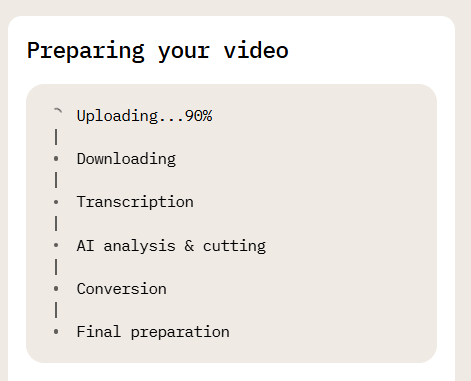
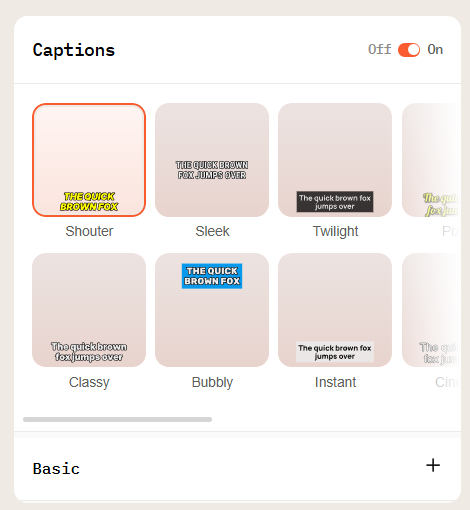
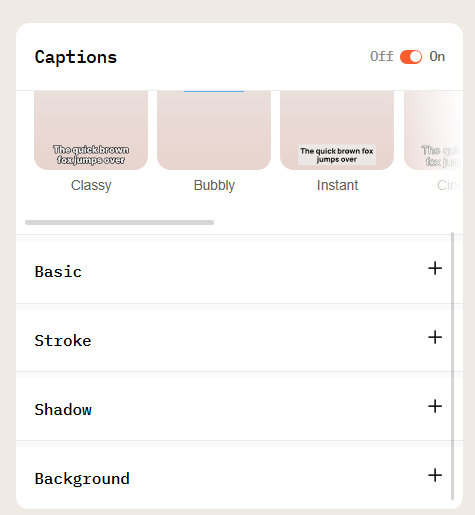
Once your video is loaded, you can add subtitles and customize their style:
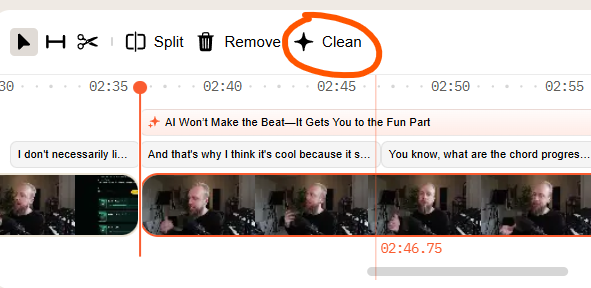
The editor's timeline shows the full transcript of your video, automatically broken into logical segments so you can quickly orient yourself and find specific moments.
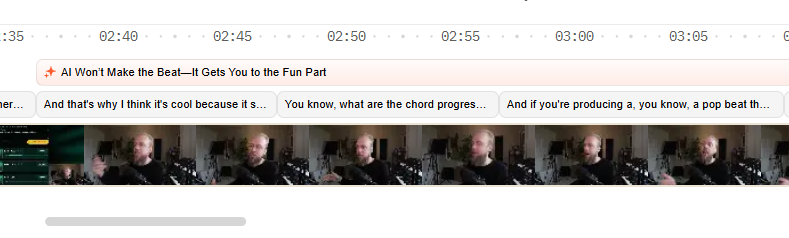
Above the transcript, on an orange background, you'll see AI-generated suggestions. These highlight key moments and let you cut the corresponding clip in a single click.
There are a few ways to select and cut the part of the video you want:
Click on a specific moment in the transcript, or on an AI suggestion, to automatically select a range matching that segment. You can fine-tune the selection by dragging the edges of the highlighted orange zone on the timeline.
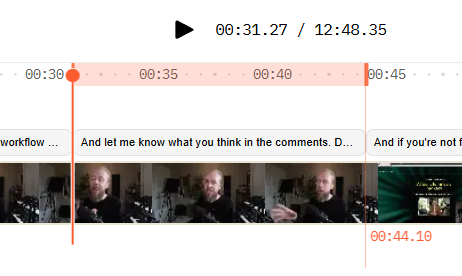
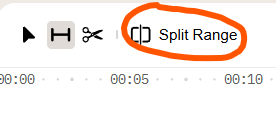
Once you're happy with the range, click Split Range to separate it from the rest of the video.
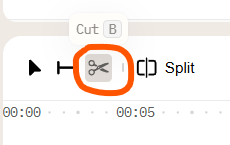
If an AI suggestion or subtitle segment doesn't line up precisely with the moment you want, click the scissors icon (Cut) to set the start and end points manually. This is useful for extending a range or trimming off extra content that the automatic selection missed.
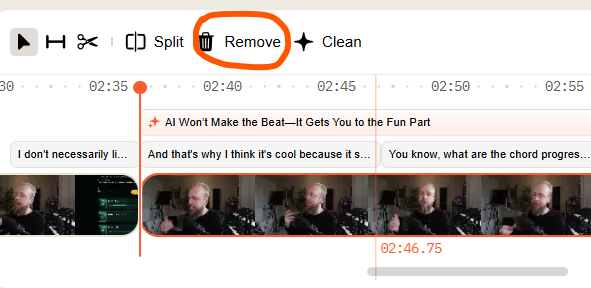
Once you've identified the part you want to keep, there are two ways to clean up the rest:
At any point while editing, use the arrow buttons above the video preview (top right) to:

Once you've trimmed the video the way you want, click Create and wait for it to process. Your finished clip will then be ready for download.

AI notice: This feature uses AI technology to process your video files.