
How to Get the Most Out of AI Video Cut
Maximize your results with AI Video Cut. Find out what works best, when to refine clips manually, and how to use prompts and regeneration.

AI notice: This feature uses AI technology to process your video files.
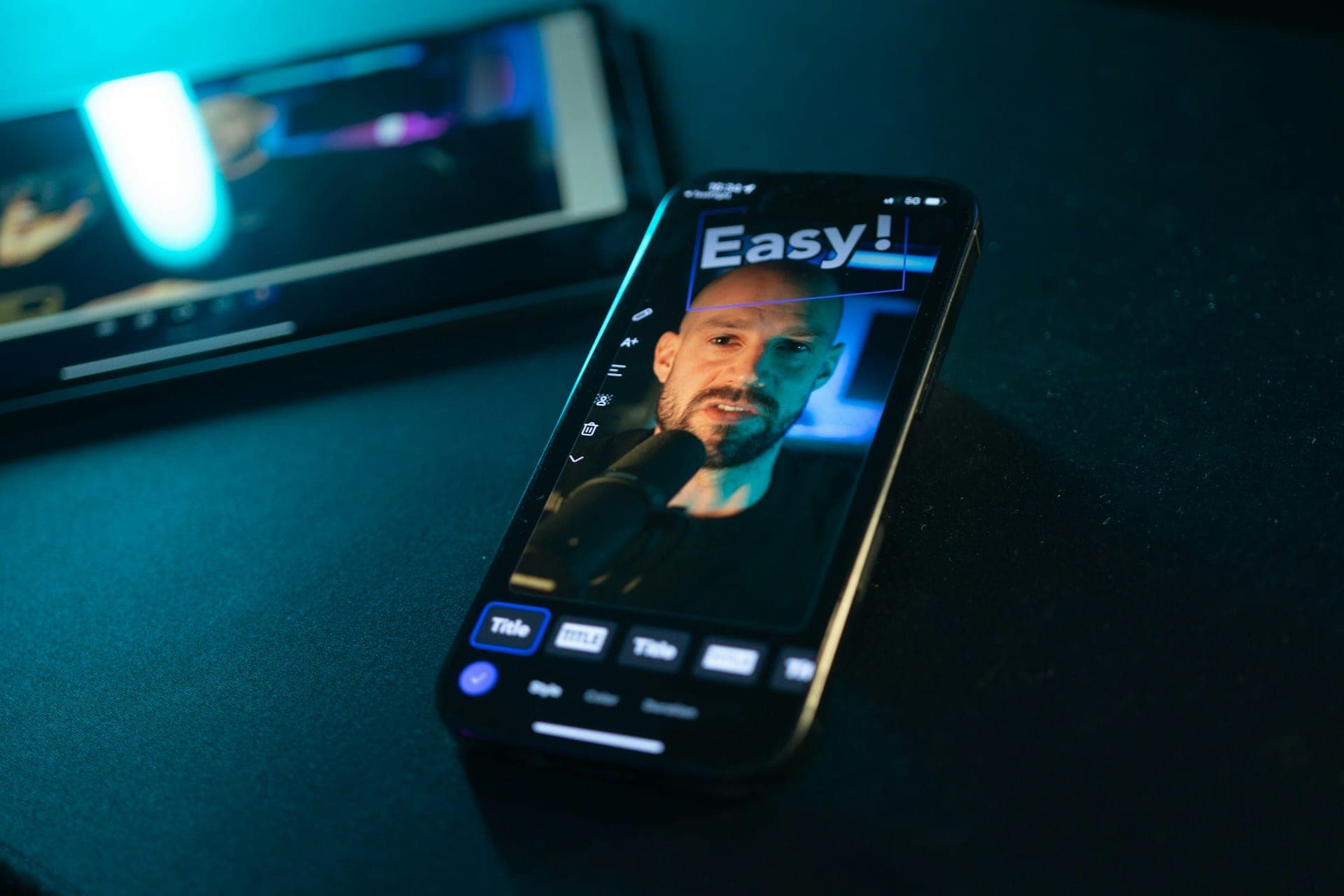
Short videos are now the most common way of finding new content on apps like TikTok, Instagram Reels, and YouTube Shorts. But turning long pieces of writing into interesting videos is still one of the most time-consuming parts of the process.
That's exactly what AI Video Cut is designed to do. Our tool automatically transforms long videos into short, shareable content using speech recognition and transcript-based analysis. It can automatically find the most important parts of your video, remove the parts that don't matter, and get your video ready to publish much more quickly than if you did it yourself. But like any AI tool, the results you get depend a lot on what you put in and how you refine what comes out.
But getting great results isn't as easy as just uploading a video and pressing “Submit”. To get the most out of AI Video Cut, it's important to understand which content works best, the limitations, and how to refine the AI's output when needed.
This guide will help you understand which types of videos work best, what limitations to expect, when a bit of manual editing is still necessary, how to use regeneration and custom prompts, and how the built-in editor can improve final results.
How AI Video Cut Works
AI Video Cut analyses spoken words, speech structure, topic changes, speaker transitions, and timestamps. It generates a transcript of your video and identifies meaningful moments based on what is being said. It is important to note that AI Video Cut does not analyse visual elements such as objects, scenes, or motion. It only works with transcription data. For the AI, your video is essentially one long piece of text.
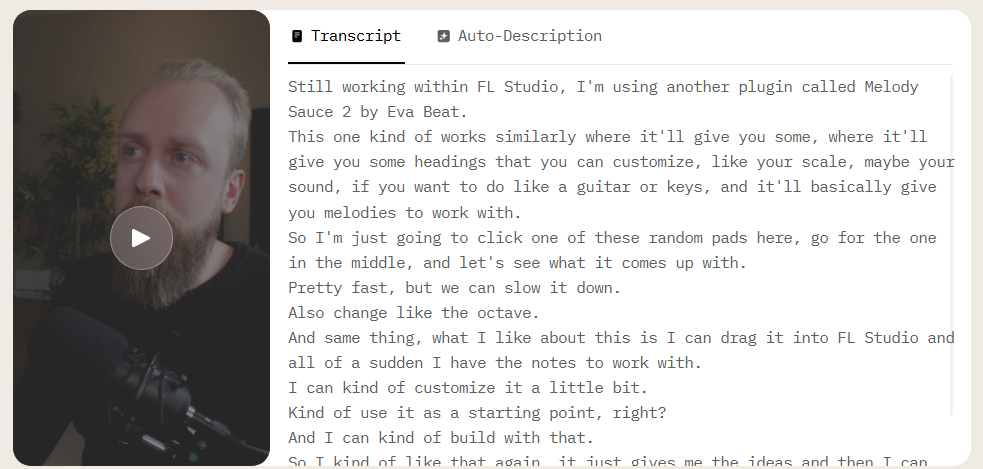
This means that if your video contains little or no spoken language, you might not get the expected results. It may not be a good idea to upload content that is focused on visuals (for example, cinematic edits or aesthetic footage), as you might be unpleasantly surprised by weak results. Since there’s minimal dialogue to interpret, the AI lacks sufficient transcript text to identify key moments.
What works really well is videos containing storytelling or dialogue-rich content, such as:
- Interviews
- Webinars
- Presentations
- Tutorials
- Product reviews
- Commentary videos
- Educational content
- Podcasts
Videos where meaning is primarily communicated through speech are perfect candidates for automatic clipping via AI Video Cut.
Video Length & File Size Limits
To get the best experience with AI Video Cut, it's important to keep the platform's duration and file size limits in mind.
With the free plan, you're limited to 30 minutes for videos. If you upload a longer video, the system automatically processes only the first 30 minutes to prevent errors. Paid plans give you more time. The Starter plan lets you upload videos up to 2 hours long, while the Pro plan supports videos up to 3 hours long. Paid plans are a perfect choice for full-length webinars, detailed product demos, multi-hour podcast episodes, and other long-form recordings.

Also, the file size limits depend on the plan you choose. If you're on the free plan, you can upload files up to 2GB per video. On the paid plans, you can upload files up to 4GB.
What Content Needs Refining
We designed AI Video Cut to work with conversational content. For this reason, it is particularly effective for interviews, webinars, and podcasts. However, in the real world, conversations are rarely that neat and tidy. When people are chatting, they often interrupt each other, talk over each other, change topics mid-sentence, or leave thoughts unfinished before moving on. There might be lots of pause fillers as well! From a human perspective, these moments often have the most engaging and emotional parts of the conversation. AI, on the contrary, finds those bits harder to interpret cleanly.

Even though AI Video Cut can detect speaker changes and extract meaningful quotes from dialogue, the complexity of multi-speaker interaction can sometimes lead to inconsistencies. For instance, these could be segments that end too abruptly, a single idea might be split across multiple clips, or AI may miss a punchline hidden inside overlapping speech. You might also notice transitions that feel a bit unnatural when different speakers jump in quickly. In the built-in editor, you can find those parts and correct the transcript or delete some video bits along with the text that you find unsuitable.
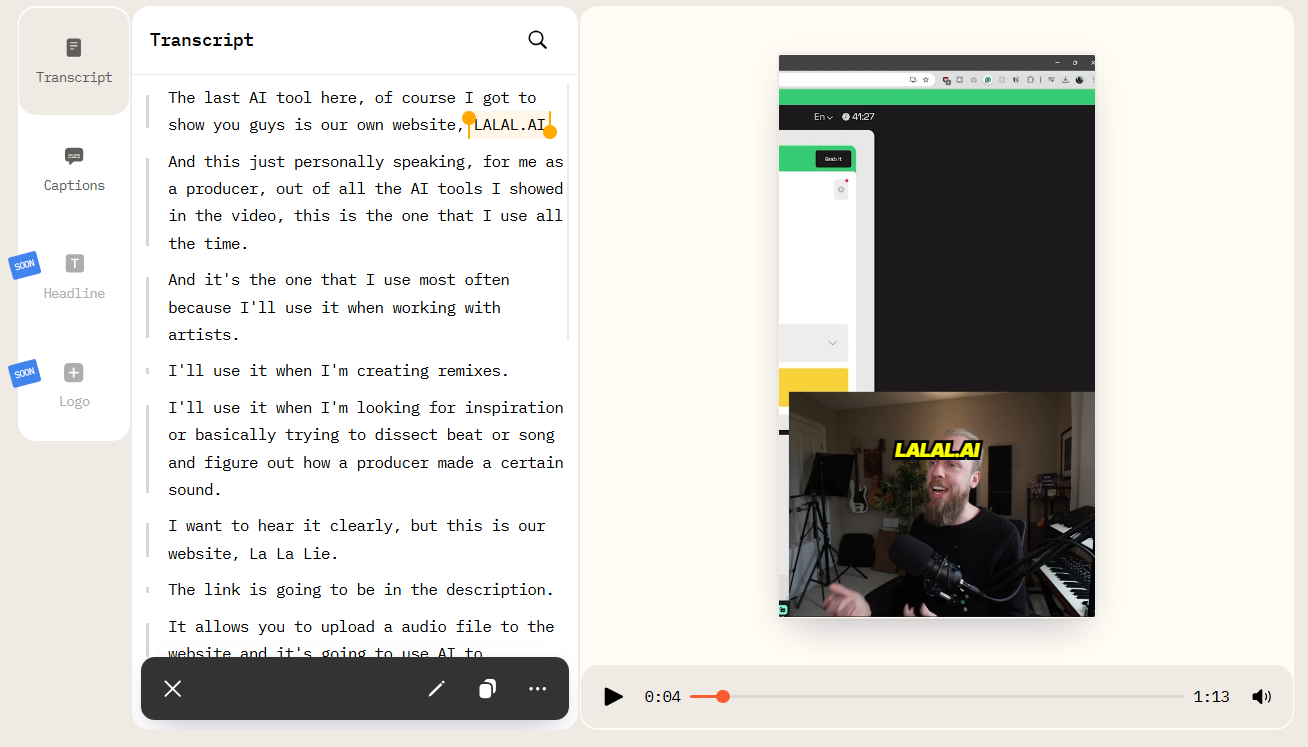
In addition, some important details, such as website or product names, can be transcribed incorrectly. One more issue that could use some quick refinement is the caption's position, which might cover someone’s face or an important part of the scene. You might also find a more suitable subtitle style or color that better fits your footage.
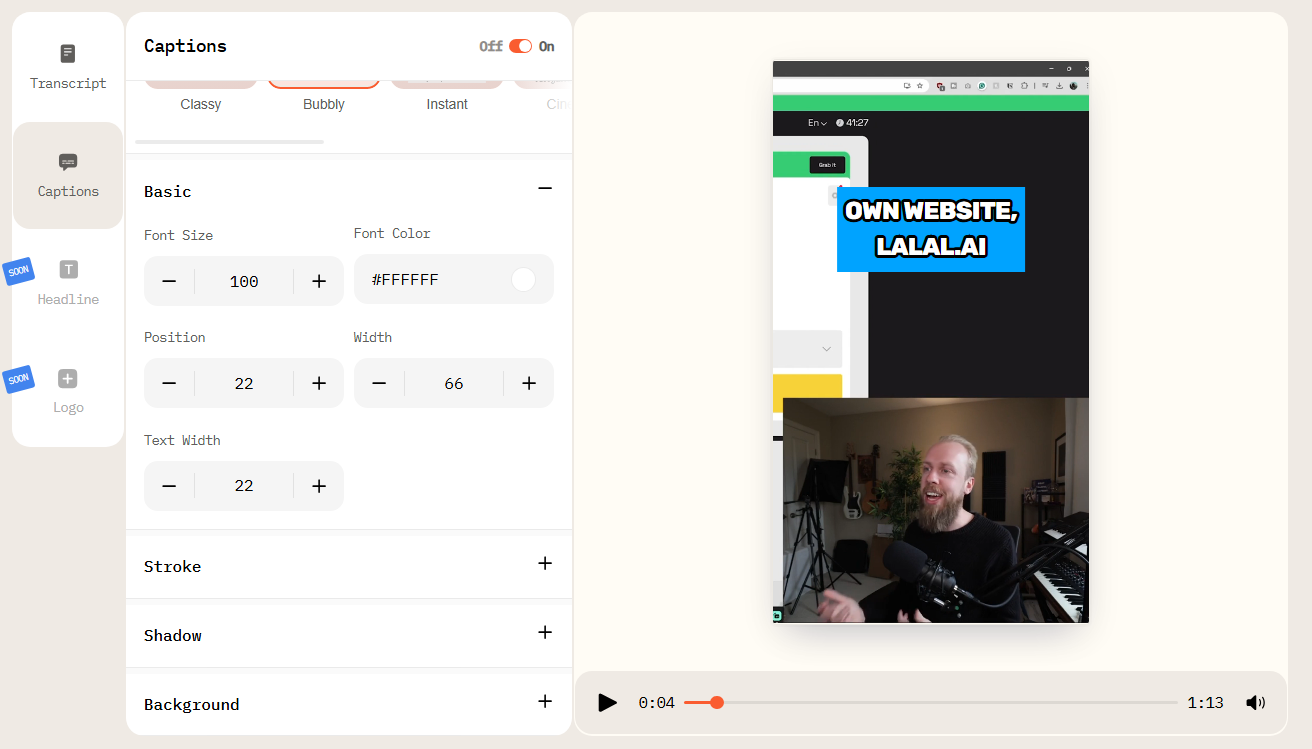
That's why it's often a good idea to refine the conversation in a manual way after the automatic cut has been made. These small tweaks can really make a big difference to how watchable a clip is, especially when there's more than one speaker. Once you've done that, you can either overwrite the current version or save the updated clip as a new one if you'd rather keep the original intact.
What Prompt to Choose
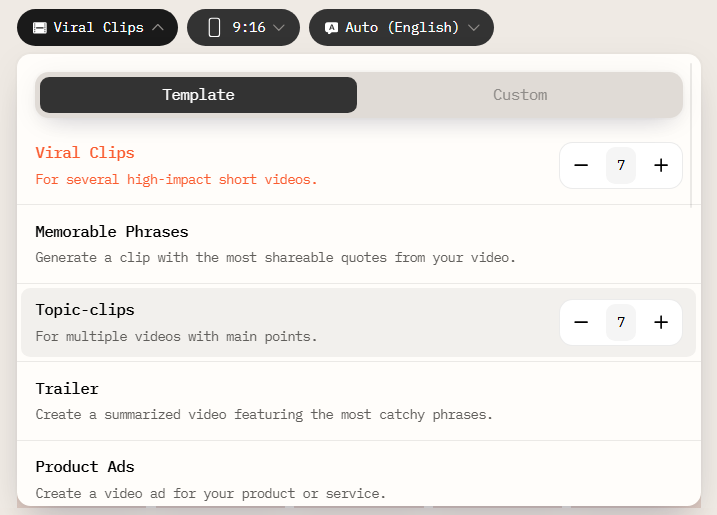
One of the best things about AI Video Cut is that you don't need to know how to get an AI model going from the beginning to get good results. However, you still have control over the resulting clips. Our tool already includes a range of built-in prompt types that guide the system towards different editorial goals. When you pick an output format like Viral Clips, Trailer, Speaker's Insights, or Product Ads, you basically decide how the AI should understand and rank the transcript it's created.
These built-in prompts are designed to extract different kinds of meaning from your content. Instead of having to define your intent every time, you can use predefined output types to shape the structure and tone of the resulting clips. You can choose between the different types depending on whether you want to educate, entertain, persuade, or summarise.
That said, there may be times when you want more control over what the AI extracts from your video. As AI Video Cut processes your footage mainly as text, you can use Custom Prompt to guide the analysis towards particular themes, keywords, or parts of the transcript you want to focus on.
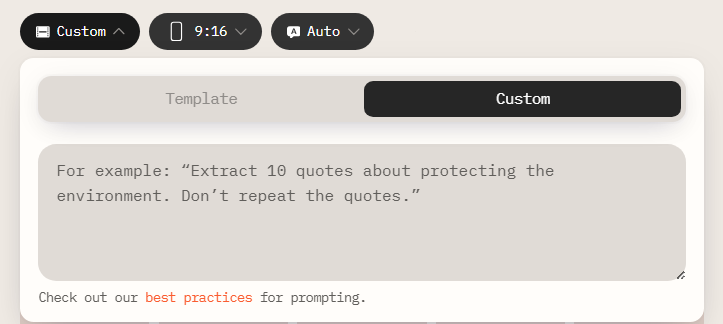
For example, you might ask the AI to extract a certain number of quotes related to a specific topic or to focus only on moments that contain a particular word or idea. Sometimes, using role-based instructions, like asking the AI to act as a storyteller and extract quotes that form a coherent narrative, can produce more structured and engaging outputs. You can make the generated clips more in line with your content strategy by adding simple constraints, such as ensuring quotes don't repeat or focusing on actionable insights.
Regeneration Helps You Choose the Best Prompt
If the first version of your clips that's automatically generated doesn't quite match what you expected, no need to start from scratch. AI Video Cut lets you generate new results with different prompts or settings without re-uploading the original video.
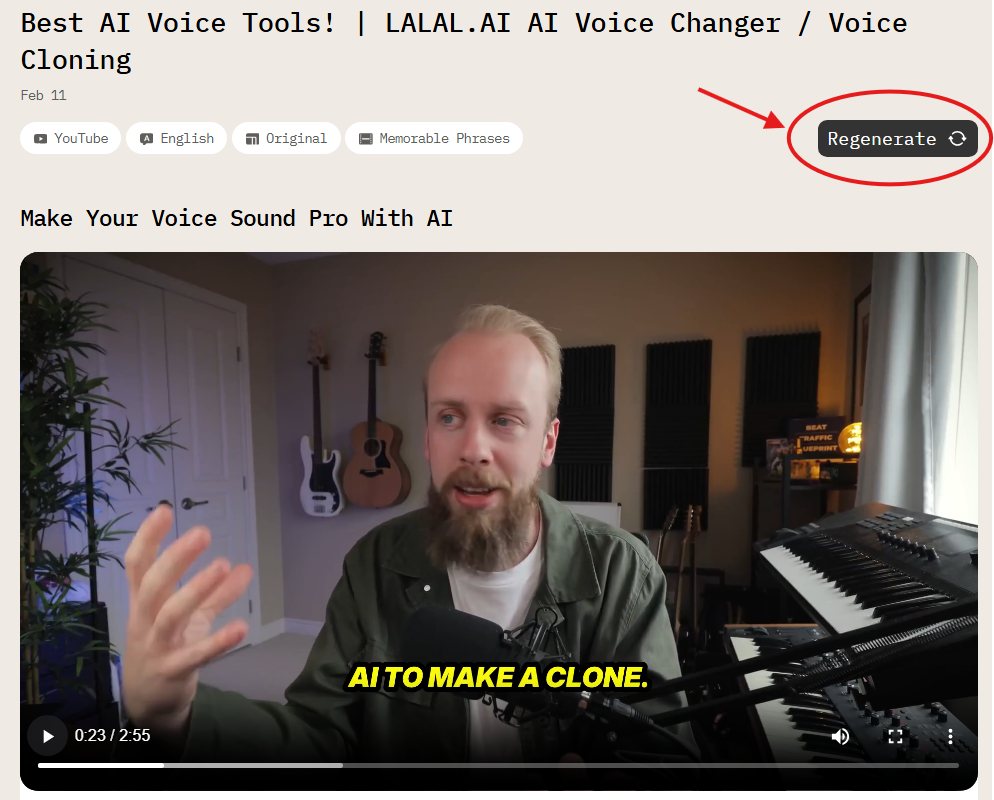
Regeneration doesn't really focus on fixing mistakes, but more on coming up with new ways of looking at the same source material. A different prompt might highlight more emotional moments, emphasise practical advice, or surface entirely different segments that were overlooked in the first pass. This is really useful for longer videos with a few potential highlights, because different versions of the same content can perform better or worse on different platforms.
AI Video Cut is designed to reduce editing time, but combining AI automation with a bit of manual editing will always yield the best final result. You can dramatically reduce the time needed to turn long-form conversations into short, platform-ready clips.
If you’re consistently creating long-form video and want to repurpose it faster without sacrificing quality, AI Video Cut can become a core part of your workflow.
AI notice: This feature uses AI technology to process your video files.