
New In! AI Video Cut Expands Caption Editing Tools Inside the Editor
Meet captions updates in the Editor with full customization tools—font size, position, colors, stroke, shadow, and background controls for flexible, brand-ready subtitles.

AI notice: This feature uses AI technology to process your video files.
We’ve just rolled out an update to our captions functionality, turning what used to be a preset-only option into a fully adjustable design panel!
Until now, users working in the Captions tab within the Editor could only switch between subtitle presets, the same ones selected during project creation. If a creator wanted a different look, the only option was to pick another preset and hope it fit the video.
The good news is that the limitation is gone. The Captions tab now allows detailed customization of every preset directly inside the editor, without restarting the project or rebuilding subtitles from scratch.
From Preset Switching to Full Visual Control
Previously, the workflow was straightforward but rigid. Subtitles were generated; the typography, positioning, background, and decorative elements were locked within each preset.
With the new update, every preset acts as a starting point rather than a fixed template. Creators can now fine-tune the visual presentation of captions to match platform requirements, brand guidelines, or the tone of a specific clip.
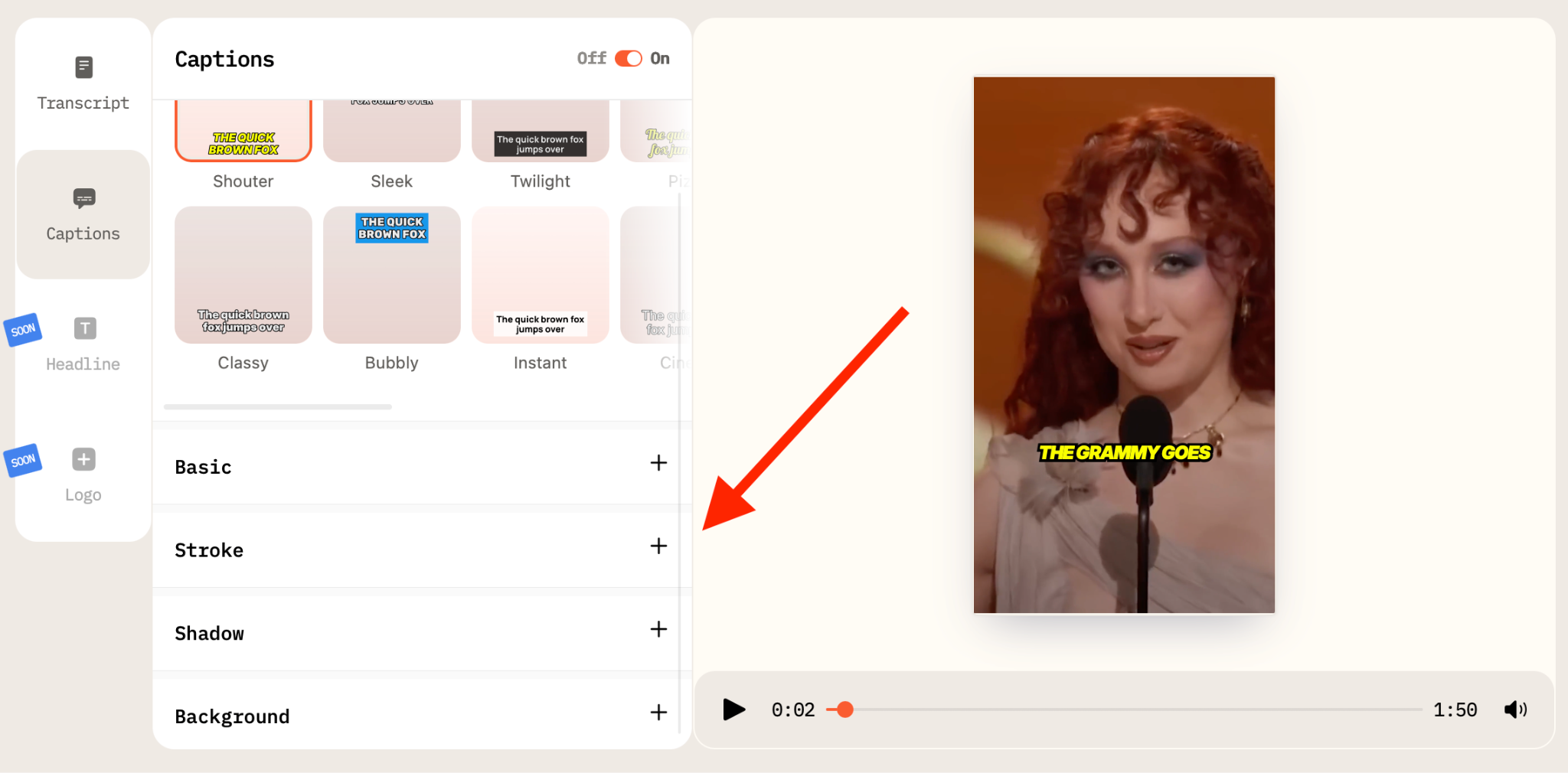
What Can Now Be Adjusted
The update introduces granular controls across typography, positioning, and visual styling.
Users can now modify:
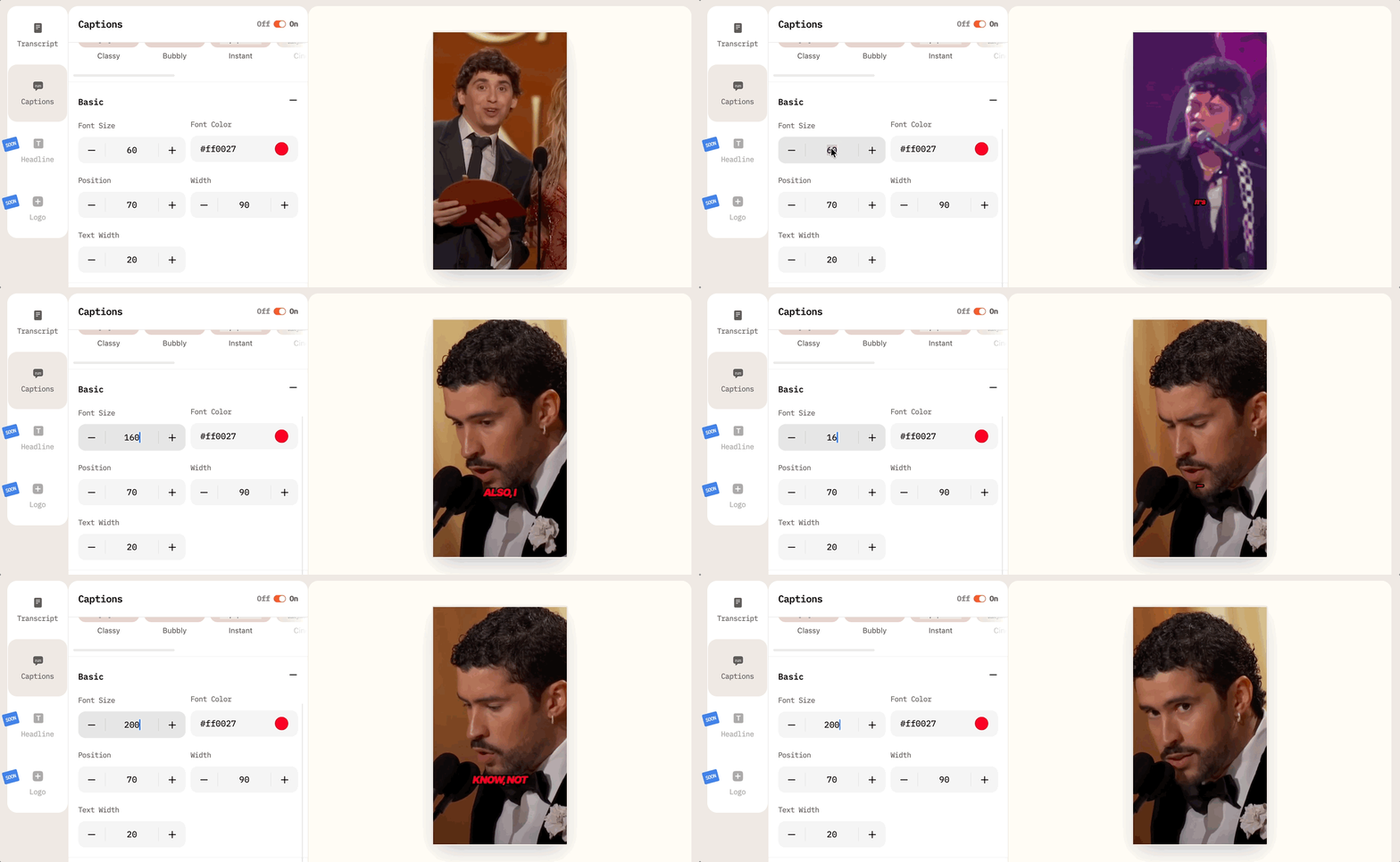
- Font size, allowing captions to be optimized for vertical videos, widescreen formats, or small-screen viewing.
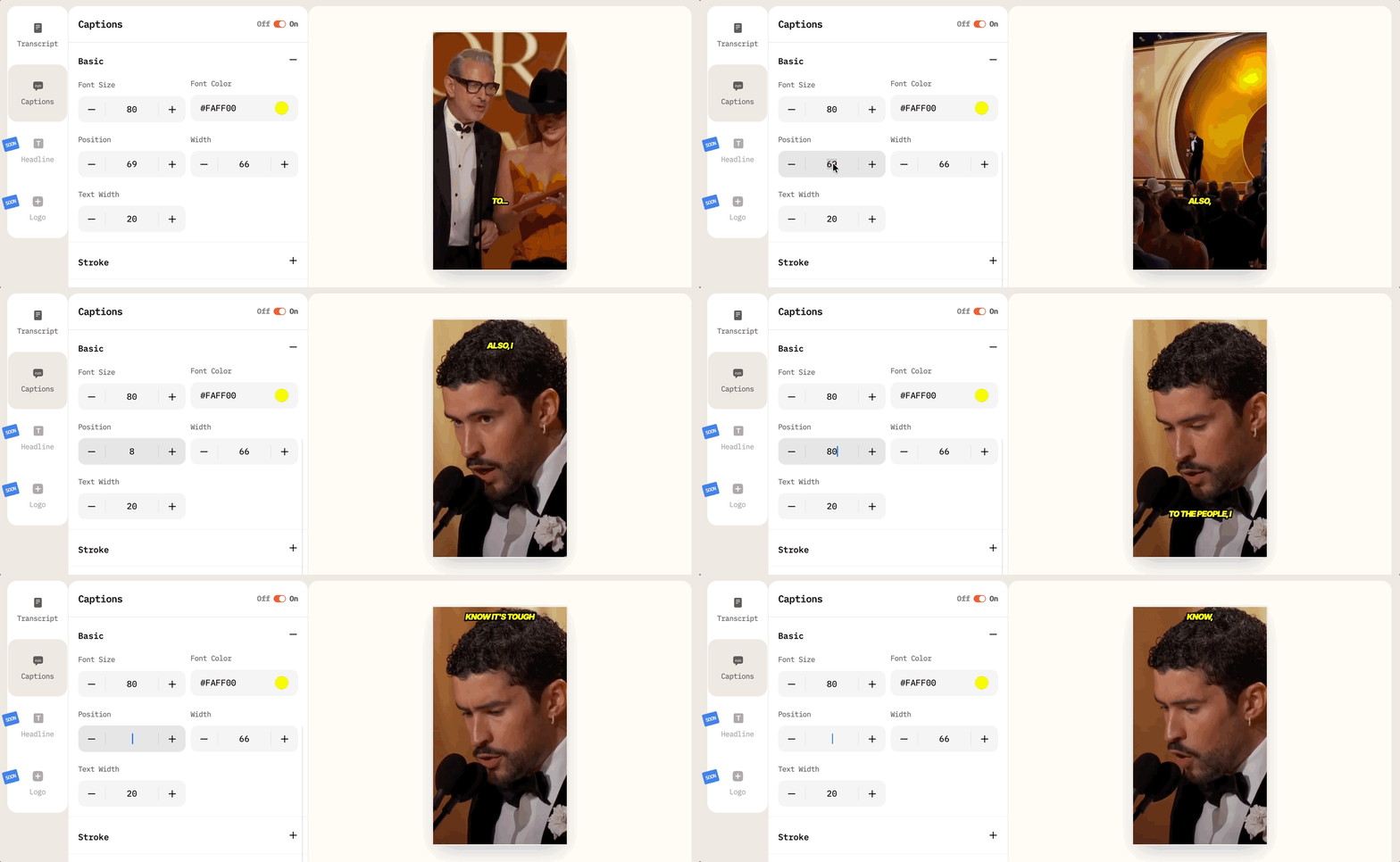
- Vertical position (Y-axis), making it easier to move subtitles higher or lower in the frame depending on composition, lower-thirds, or on-screen graphics.
- Width controls how wide your text is relative to the screen width.
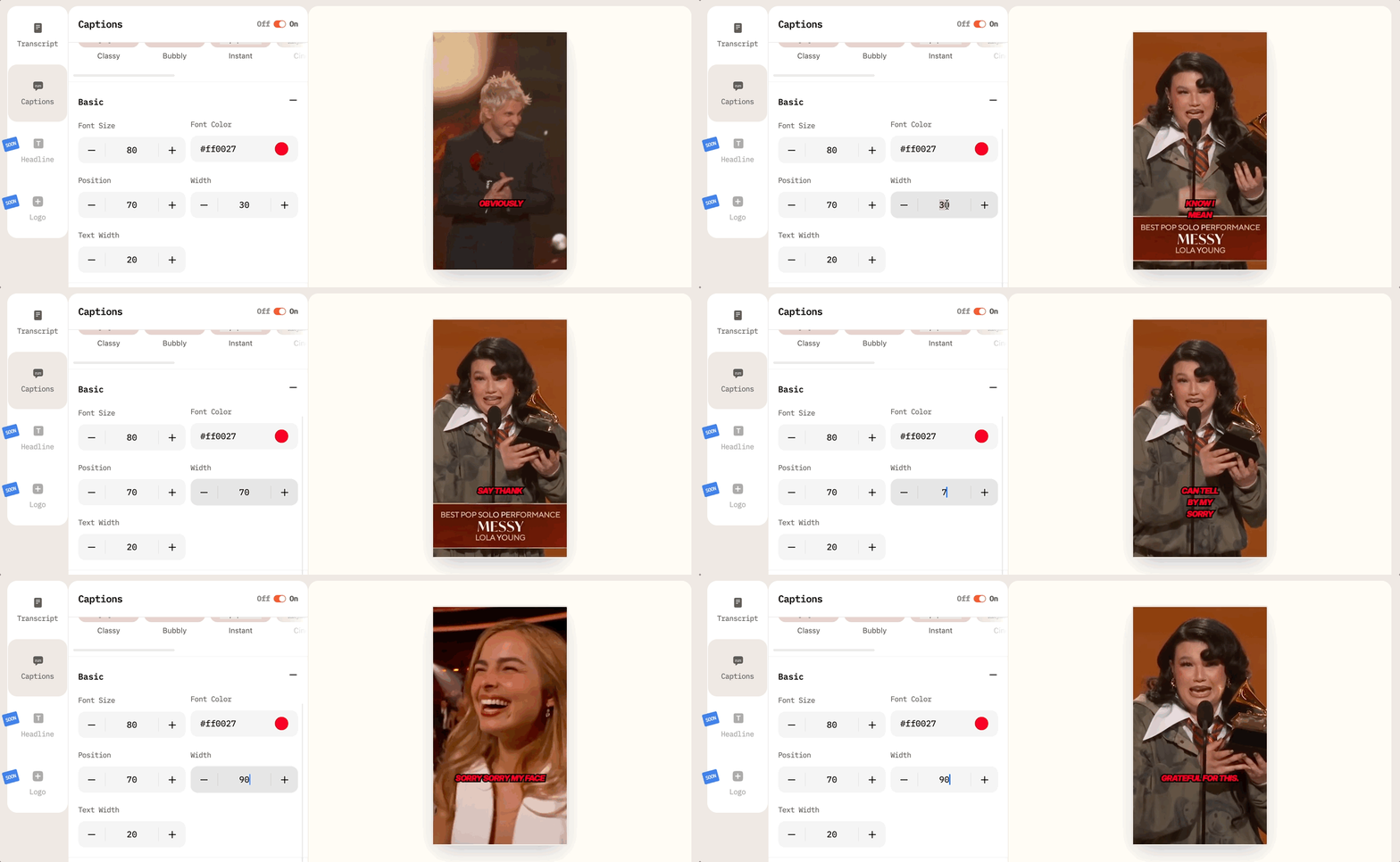
- Font Сolor, giving creators freedom to match brand palettes or increase contrast for readability.
Beyond basic adjustments, the update also expands control over decorative and readability-enhancing elements.
Stroke
Captions can now include a fully adjustable stroke around each letter. Users are able to change:
- Stroke color
- Stroke thickness
This makes it easier to maintain legibility against busy backgrounds, fast cuts, or high-contrast footage.
Shadow
Shadow settings have also been expanded. Creators can configure:
- Shadow distance
- Opacity level
- And, of course, color!
These controls allow for subtle depth effects or stronger contrast adjustments, depending on the visual style of the video.
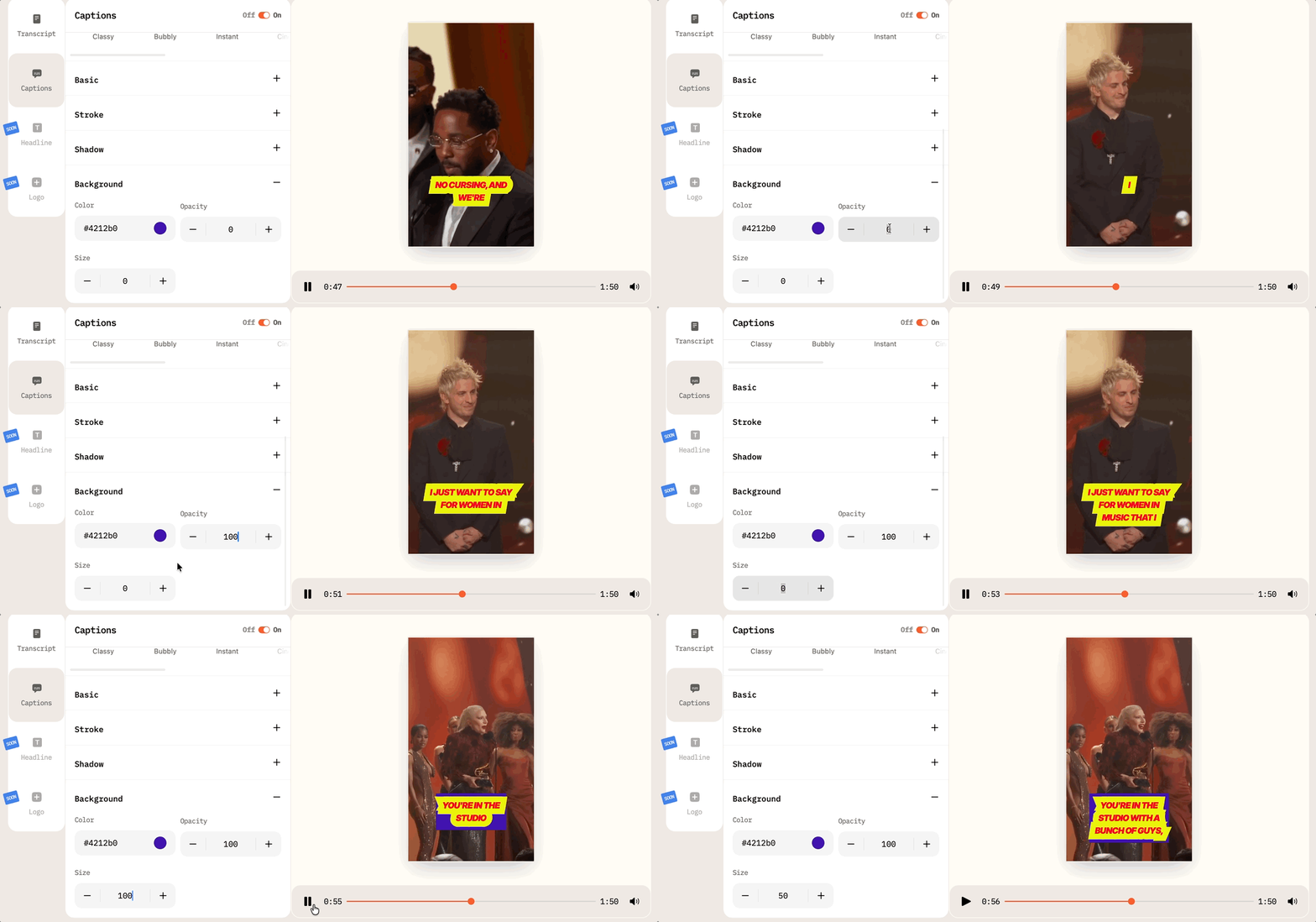
Background
The background layer beneath captions is no longer fixed. Users can now define:
- Background color
- Opacity level
- Size
Why This Matters for Short-Form Content
Captions are no longer just accessibility tools; on platforms like TikTok, Reels, and Shorts, they function as a core engagement driver. In fact, more than 70% of viewers watch videos without sound, and text design influences how long they stay.
By giving users control over typography, spacing, shadows, and background shapes, AI Video Cut removes the need for external design tools or manual post-processing. You can now adapt subtitles to different formats without exporting and re-editing elsewhere.
For brands and social media managers, the update also means consistent visual identity across clips. Caption styling can now align with brand colors and visual language rather than relying on generic presets.
A More Flexible Editing Workflow
You’ve surely noticed that the update doesn’t introduce new presets at all; instead, it unlocks customization within existing ones. We did this to keep the workflow familiar while expanding creative control inside the same interface. So instead of rebuilding subtitles or adjusting them in separate software, creators can now treat captions as an integrated design element inside AI Video Cut’s editor.
With these changes, captions move from being a fixed setting to becoming a customizable part of the storytelling process, which reflects how central on-screen text has become in modern video production.
Upload your next video and give it a go!
AI notice: This feature uses AI technology to process your video files.