
AI Video Cut Now Automatically Picks the Best Output for Your Video
Don't know which output mode to select? Rely on Auto mode, AI Video Cut's new output type!

AI notice: This feature uses AI technology to process your video files.

Choosing the right prompt has always been the first decision you make when processing a long video with AI Video Cut. Pick the wrong one, and the clips feel off: too slow for a gaming highlight reel, too punchy for a documentary interview. But pick the right one, and the output practically edits itself.
Until now, that choice was entirely on you. But in our recent update, we're changing that and passing the burden of choice on AI Video Cut.
Introducing Automatic Selection in AI Video Cut
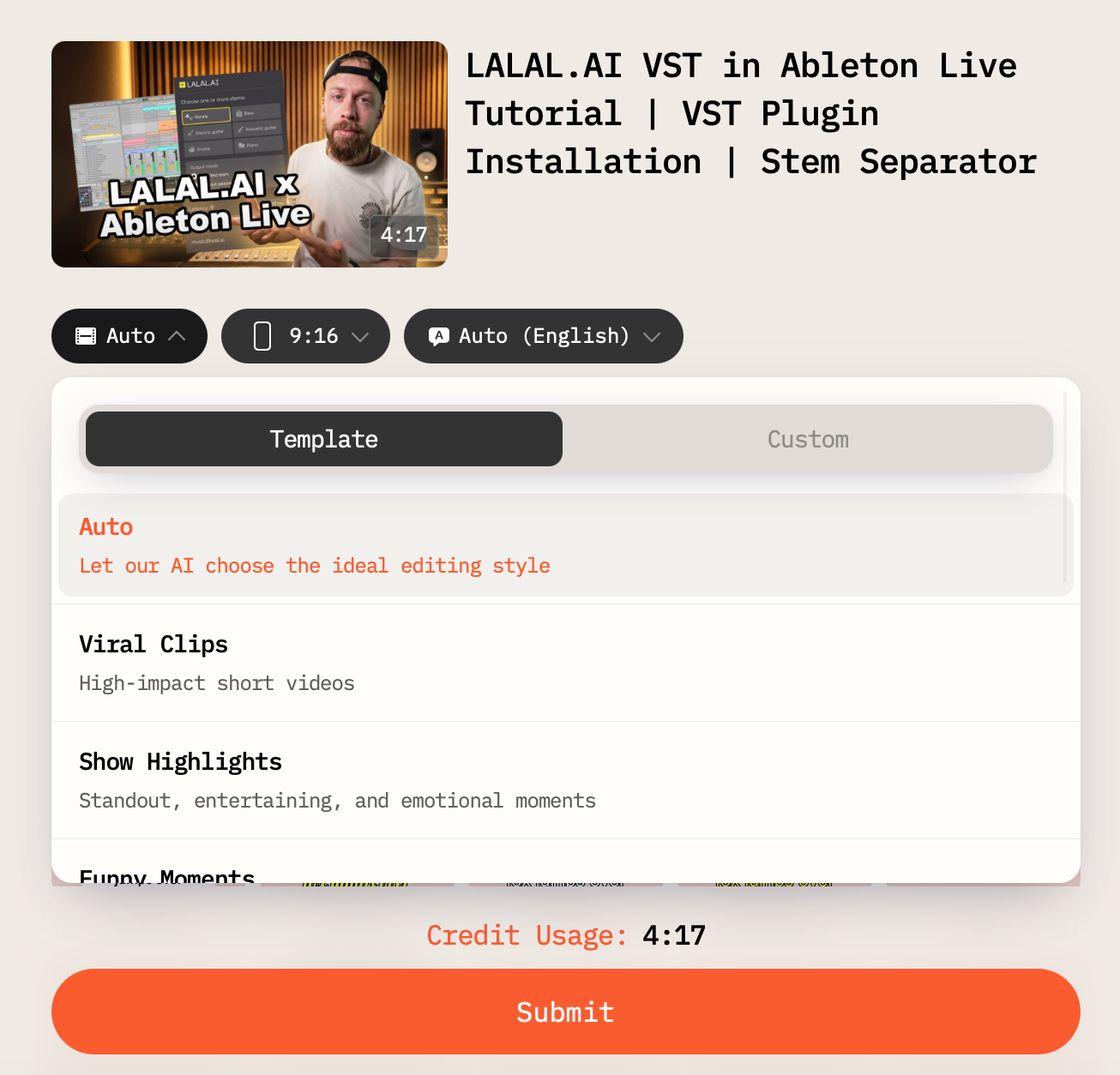
Auto selection is a new default mode in AI Video Cut that automatically detects the type of content in your video and selects the most suitable prompt before you even have to think about it.
All you need to do is upload a video or paste a link, and auto selection takes it from there. No scrolling through the prompt list or guessing whether your clip counts as a "talk show" or a "podcast interview" from your end. The AI reads the content and makes the call. It's the fastest path from raw footage to a ready-to-share short.
How It Works
When you submit a video, either through a link or as a local file, AI Video Cut analyzes the title and transcript fragments to classify the content into one of five types: speech, show, music, sports, or gaming. That classification determines which prompt is applied by default, that’s the one most likely to produce great clips for that specific format.
- Upload a video file you want to cut, either as a local file or paste its URL.
- Let AI Video Cut process it. The Auto mode will be selected by default.
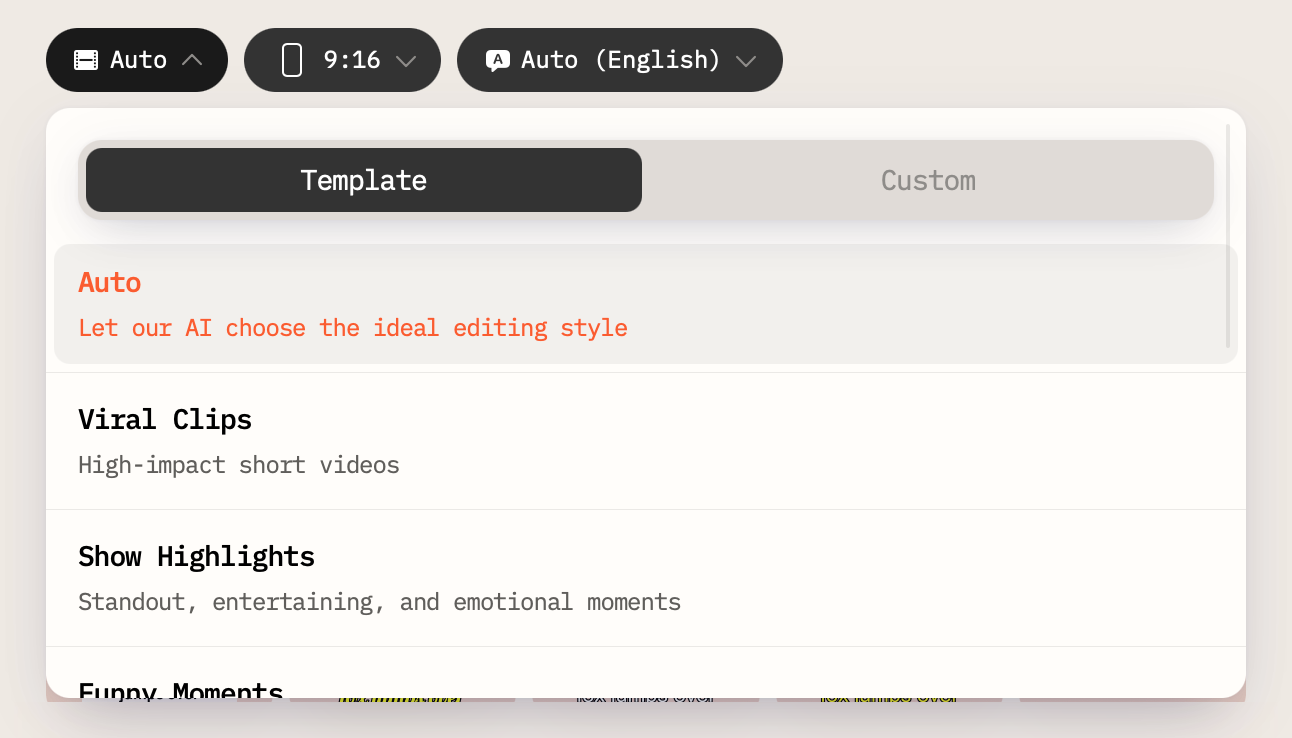
- Set the aspect ratio.
- Click Submit.
- Select the style of the captions.
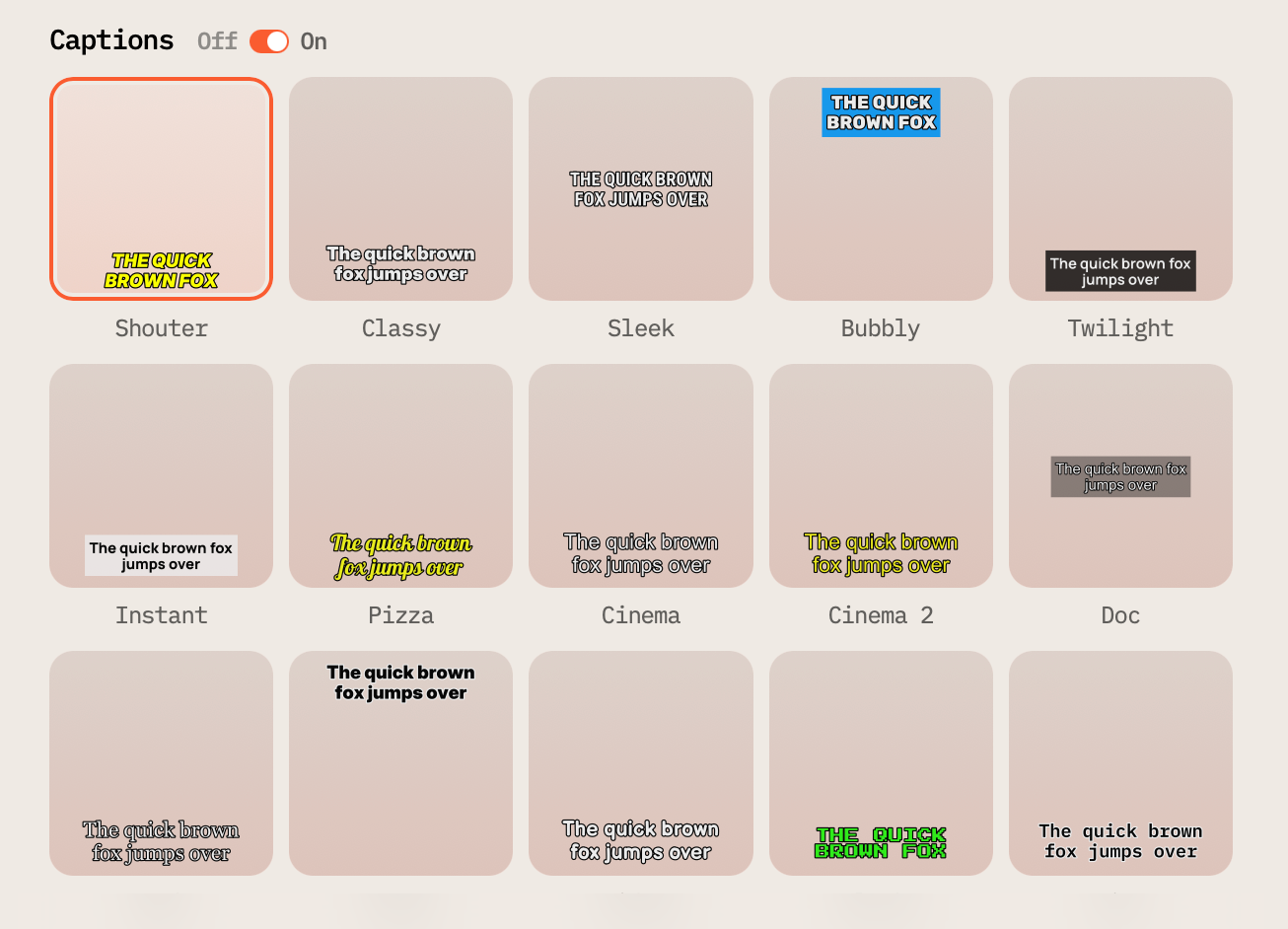
- Tap Submit.
Wait for a few minutes and review the result in your Dashboard.
The result is a more precise starting point, tuned to your actual content rather than a generic setting.
Good to know: Which Upload Sources Are Available in AI Video Cut?
What If You Want to Change the Default Choice? Regeneration Is Now Smarter, Too
Auto selection doesn't just improve the first cut; it also makes regeneration more useful.
If you want to change the automatic choice made by AI Video Cut and regenerate clips, the prompt suggestions you see are now tailored to your content type, not a static list pulled from the full template library. If your video was classified as a gaming stream, you'll see prompts that make sense for gaming streams. If it's a keynote speech, the regeneration panel reflects that.
This means fewer irrelevant options and more prompts that are actually worth trying.
Works Even When You Choose Manually
If you prefer to pick a prompt yourself, you still can do that as nothing about the manual workflow has changed.
But here's the thing: even when you select a prompt by hand, content classification still runs in the background. The result is used to surface smarter prompt recommendations during regeneration, so you're not starting from scratch if the first attempt doesn't land exactly where you wanted.
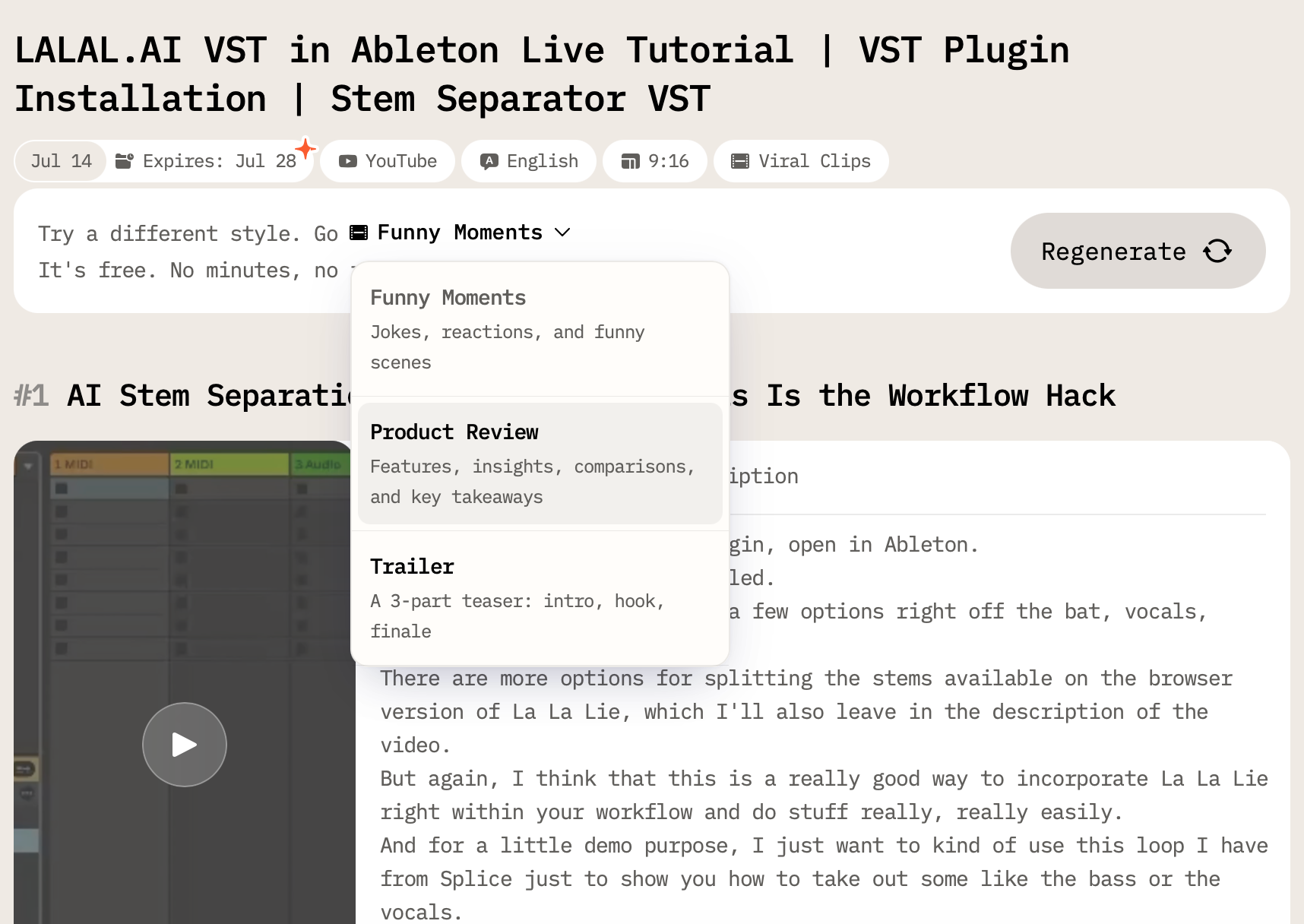
Think of it as a second opinion that's always ready when you need it.
Try Updated Automatic Approach in AI Video Cut
The prompt is the instruction your AI editor works from. A mismatched prompt doesn't just produce weaker clips; it produces clips that feel like they were cut from a different video entirely.
Auto selection removes that friction. Most users don't think in terms of prompt categories but they do think in terms of their video and what they want to do with it. This update closes the gap between those two things, so you can focus on what actually matters: the content you create.
Auto selection is available now as the default option when you upload a video. Give it a try and see what your content looks like when the AI already knows what it's working with!
AI notice: This feature uses AI technology to process your video files.