
Just Launched! AI Video Editor: Transcript-Based Editor with AI Tips
Cut videos by clicking on key moments, not by scrubbing a timeline. The AI Video Editor shows a visual map of the footage with AI tips.
AI notice: This feature uses AI technology to process your video files.
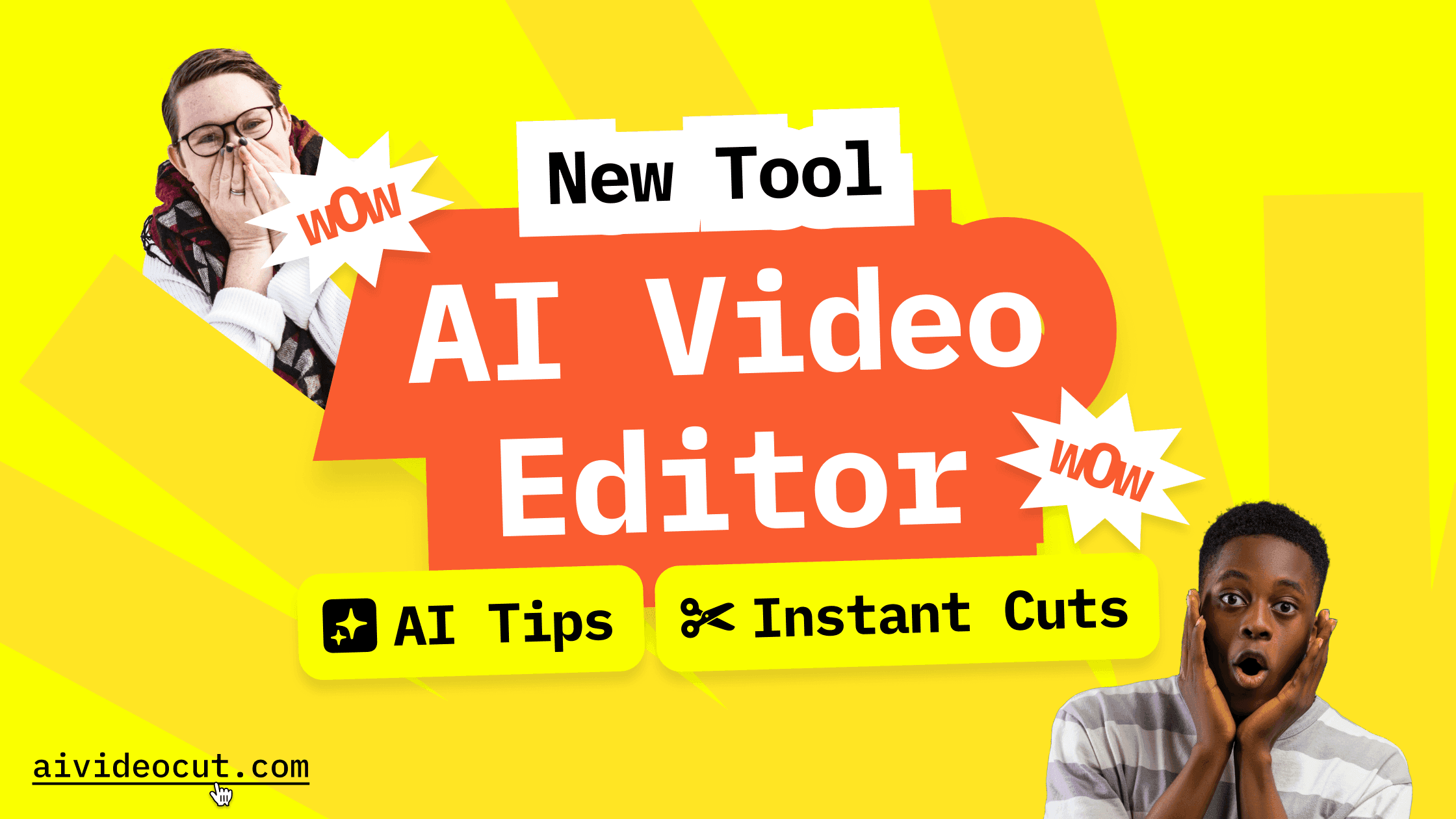
We're excited to introduce the AI Video Editor, a new addition to the AI Video Cut toolkit. If you've ever exported a long video and thought "I just need this one part," this tool was built exactly for that.
Rather than dragging the playhead back and forth to find the right in- and out-points, the Editor allows you to work directly from your video's transcript. Simply read the text, find the desired moment, and click to cut.
From Timeline Guessing to Transcript-Based Editing
Traditional trimming tools ask you to do all the work visually: scrub through footage, guess where a sentence starts, replay a section three times to catch the exact word where you want to cut. It's slow, and it gets worse the longer the source video is. The AI Video Editor flips that process. Your video is transcribed and broken into logical, meaning-based segments, laid out right on the timeline.
How It Works
Getting started takes just a few steps:
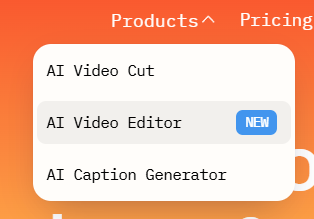
- Go to the AI Video Editor page or click Products at the top of the screen and select AI Video Editor.
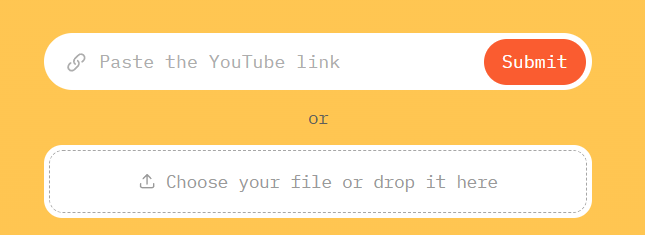
- Upload your video by pasting a link from YouTube, Reddit, Instagram, Zoom, Twitch, Dailymotion, Facebook, or Google Drive, or by uploading a file directly.
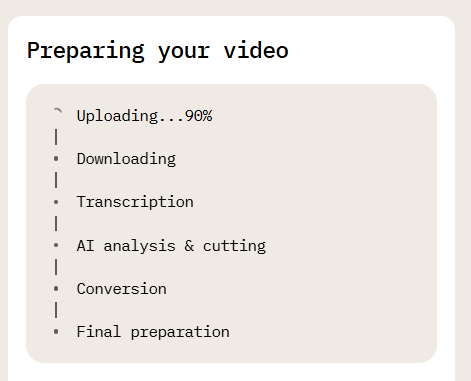
- Wait for the video to upload. While your video processes into the editor, you're free to close the tab; a dashboard project and an email notification will be waiting for you when it's ready.
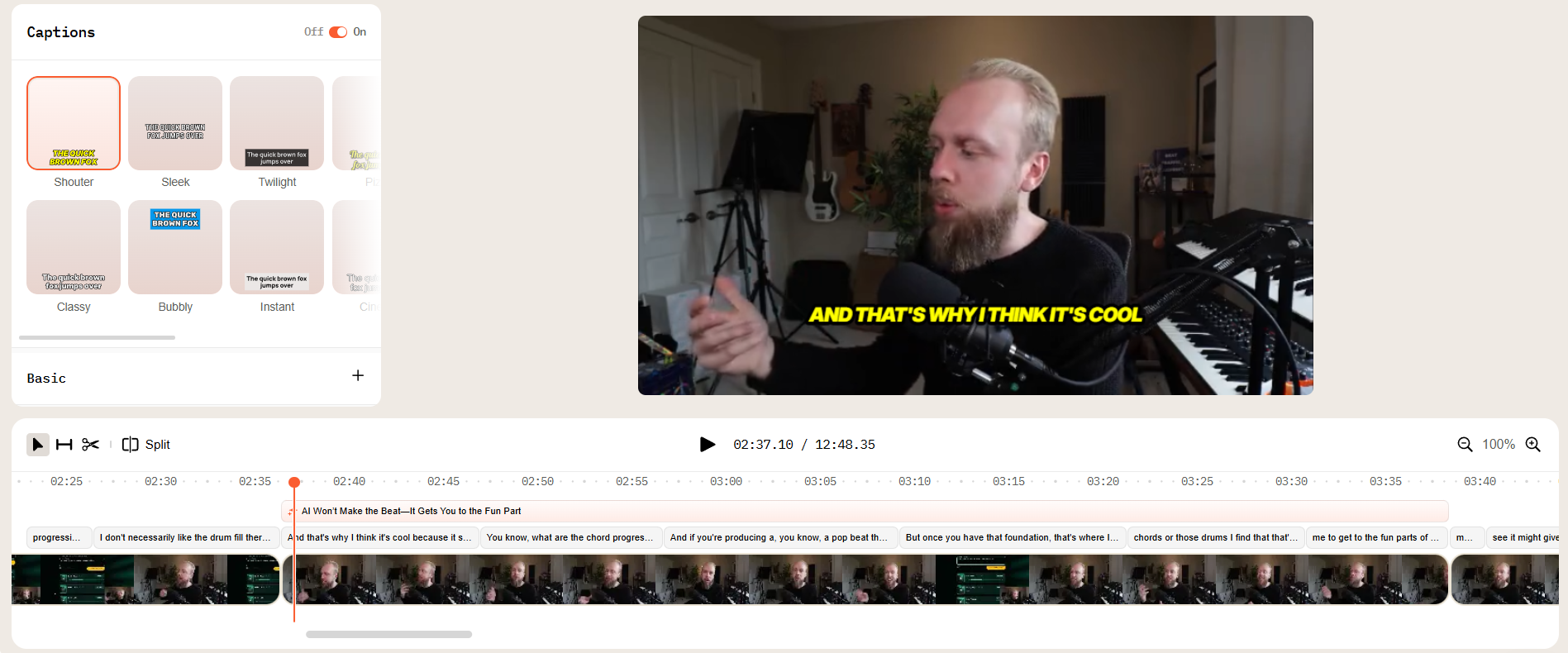
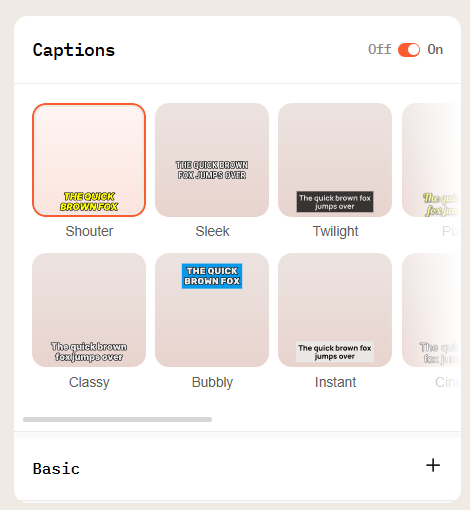
- Set your subtitles with basic controls like size, position, and color, plus more detailed options like Stroke, Shadow, and Background.
Once you're in the editor, the transcript sits on the timeline, segmented for easy navigation. Above it, on an orange background, you'll find AI-generated tips for moments worth clipping.
Multiple Ways to Select Your Clip
The Editor gives you more than one way to land on the exact range you need:
- Click a moment in the transcript or an AI suggestion, and a range is automatically selected around it. From there, you can drag the edges of the orange selection to adjust it
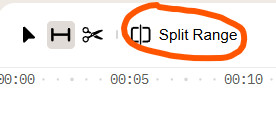
- Click Split Range to separate that segment from the rest of the video.
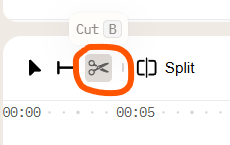
- Alternatively, click the scissors icon (Cut) and set the start and end points manually and more precisely. It’s useful when an AI suggestion or subtitle segment doesn't land exactly where you want it.
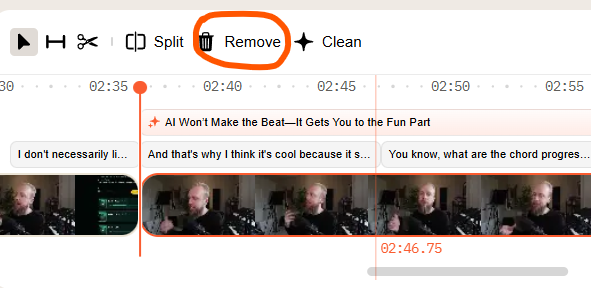
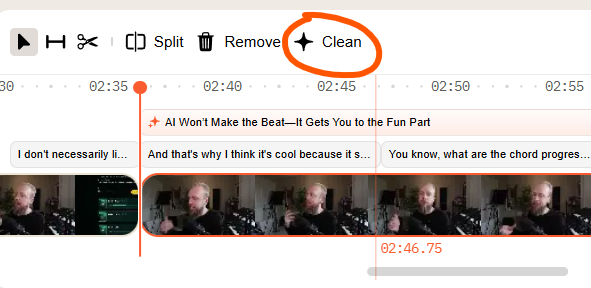
Once your clip is selected, cleaning up the surrounding footage takes one of two approaches. You can select the unwanted part and hit Remove, or select the part you want to keep and hit Clean to strip away everything else.
If a change doesn't work out, Undo, Redo, and Reset are all one click away above the video preview, so you can experiment freely without fear of losing your progress.

Why This Matters for Creators
Most editing time isn't spent editing; it's spent searching! Scrubbing through raw footage to find a good soundbite, a punchline, or a key insight eats up far more time than the actual cut itself.
By putting the transcript at the center of the workflow and layering AI suggestions on top of it, the Editor dramatically shortens the search. You read instead of scrub, and the AI does a first pass at surfacing the moments most worth cutting.
This makes the tool especially useful for repurposing long-form content (such as podcasts, webinars, shows, sports, interviews, and livestreams) into short, focused clips without needing to rewatch the entire source video.
A Faster Way to Get to the Clip You Want
The AI Video Editor doesn't replace precision but removes the guesswork around it. You still have full manual control over every cut, but you're starting from a much better vantage point: your video, mapped out as text, with AI already pointing to the highlights.
Give it a try on your next upload.
AI notice: This feature uses AI technology to process your video files.