How to Add Captions to a Video with AI Caption Generator
Aviso de IA: Esta función utiliza tecnología de IA para procesar tus archivos de video.
AI Video Cut offers two ways to add captions to your video. If your video is already clipped and ready for reels, use the AI Caption Generator to add captions directly. If you're starting with a long video and want it turned into short clips with captions, use the AI Video Cut tool.
Additionally, transcripts from captioned videos facilitate content repurposing into other formats, such as blog posts or study guides. With AI Video Cut, you can automatically generate captions and add them to your video, choosing from a variety of styles. Follow the steps below to add video captions and make your content ready for Instagram, TikTok, YouTube, and other social media platforms.
How to Add Captions to an Already-Clipped Video with AI Caption Generator
If you already have a short video clip ready for Instagram Reels, TikTok, or YouTube Shorts and just need captions added, use the AI Caption Generator.
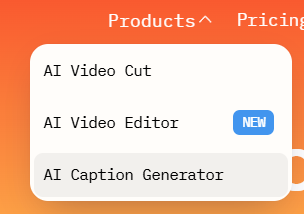
At the top of the page, open the Products menu and select AI Caption Generator.
Step 2: Upload Your Video
Click Upload a file and select a video from your device. You can also paste the link to your video.
Wait for the video to finish uploading.
Step 3: Choose Caption Settings
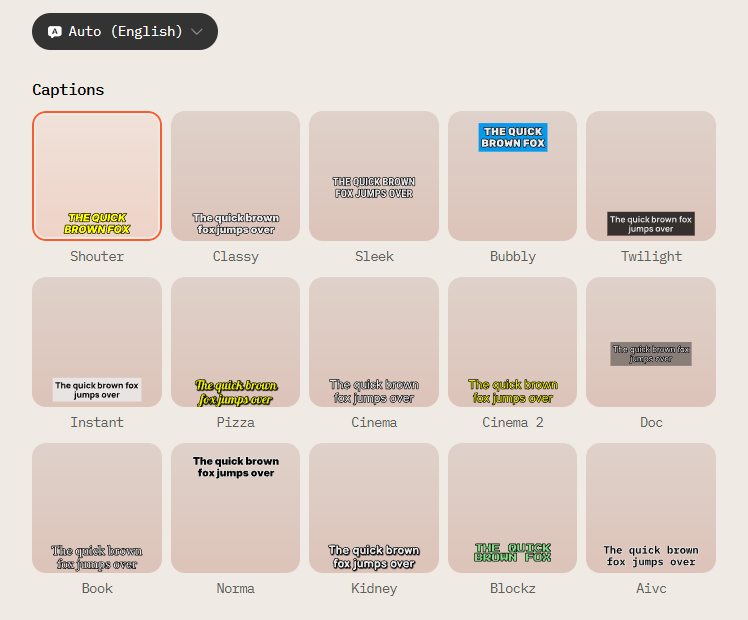
Select a caption style from the available options.
Select the video's language for better transcription accuracy or leave it on Auto.
Click Submit.
Step 4: Preview and Download
Wait for the video to process, then preview the captioned result.
If you're happy with it, click Download.
If you want to make changes, click Edit to try different subtitle styles or adjust advanced options like size, color, and position.
Once everything looks right, click Apply
Wait for the video to reprocess, and Download the final result.
How to Add Captions to a Long Video with AI Video Cut
If you're starting with a longer video and want it automatically turned into short, captioned clips, use AI Video Cut. It extracts key moments from long-form content and creates tailored clips with captions ready for social media.
Step 1: Upload Your Video
Open AI Video Cut in your desktop or mobile browser.
Click the Sign in button at the top right corner of the screen.
Paste the link to your YouTube video and click Submit. Alternatively, you can click Upload file and select a video from your device.
Step 2: Select the Captions Settings
Make sure the Captions setting is on.
Select one of the fifteen available styles of captions that you like most.
Select the language in the Speech language section. It’s set to Auto by default which enables automatic recognition. Manual selection improves transcription accuracy, especially if your video is in less common language.
Step 3: Adjust Video Settings
AI Video Cut transforms long videos into short engaging clips for social media. It extracts key moments and creates tailored clips that resonate with audiences. You can adjust the type, length, and aspect ratio of your video to suit your purposes:
Specify the video dimensions in the Aspect ratio section. You can select either 9:16 (vertical), 16:9 (widescreen), 1:1 (square), or Original.
Pick the Video type. Expand the drop-down menu to see the full list of types and learn more about each one.
Step 4: Export the Captioned Video
Once you’ve selected the settings, click the Submit button.
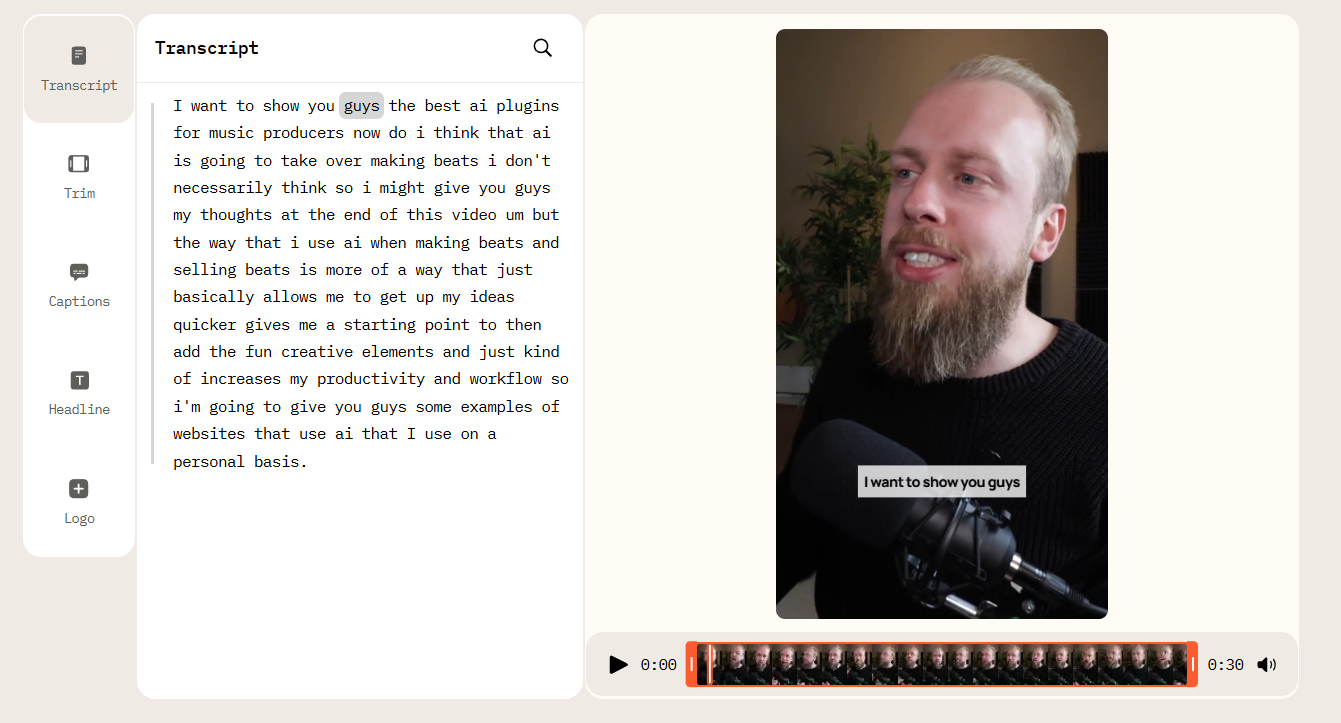
After the video is processed, click it in the list. You will see the resulting captioned video and its transcript.
Review the video to ensure it meets your expectations.
If you’re happy with the results, click Download. If not, click Regenerate to return to the settings selection screen and change your preferences.
If you would like to fine-tune the transcript and change captions style, click the Edit button and use the built-in editor functionality. After making changes, you can choose to Overwrite the current version of the video, or Save it as a new version (this is recommended if you want to keep the original).
That’s it! Share the subtitled video on social media and enjoy the engagement it brings.