
How to Clip a YouTube Video for Shorts, TikTok & Reels
Tired of manual editing and trimming videos? Learn how to clip your own or someone else’s YouTube video with these easy tools.

Updated 19.03.2026
As of 2025, YouTube still remains the most popular video-sharing platform for creators with almost 3 billion users worldwide and 64 million creators producing content on a regular basis. What’s more, a significant 64% of adults who follow content creators do so on YouTube, far exceeding other platforms like Facebook (51%) and TikTok (around 30%). And yet, it doesn’t mean your content should be just there. Repurposing your videos on TikTok, Instagram and Facebook as well as native YouTube Shorts will give you additional audience, views, and finally—monetization opportunities.
In this easy guide, we’ll show you how to make short clips out of a longer YouTube video, even if you generally find the process complicated and dull.
Can You Clip YouTube Videos?
Yes! YouTube allows users to clip sections of videos, as long as the original creator hasn’t disabled clipping permissions. The clip feature lets you capture and save a specific segment of a video—perfect for highlighting an interesting tip or moment shared by the creator. Clips can be up to 60 seconds long and are stored in your personal clip library, accessible under the Your Clips tab in the YouTube sidebar. These clips play on a loop, much like YouTube Shorts, and can be shared with others via a unique link.
How to Stop Others from Clipping Your YouTube Videos
To prevent others from clipping your YouTube videos:
- Open YouTube Studio.
- Select Settings from the left-hand sidebar.
- Navigate to the Channel section.
- Go to Advanced settings.
- Uncheck the box labeled Allow viewers to clip my content.
This ensures your content remains protected and can’t be clipped by viewers. If you’re a content creator posting videos on your YouTube channel, this feature is especially useful if you prefer not to have your content repurposed or manipulated by others.
How to Clip a Video on YouTube on Desktop
You can use the native YouTube tool to clip a video. Here’s how it works:
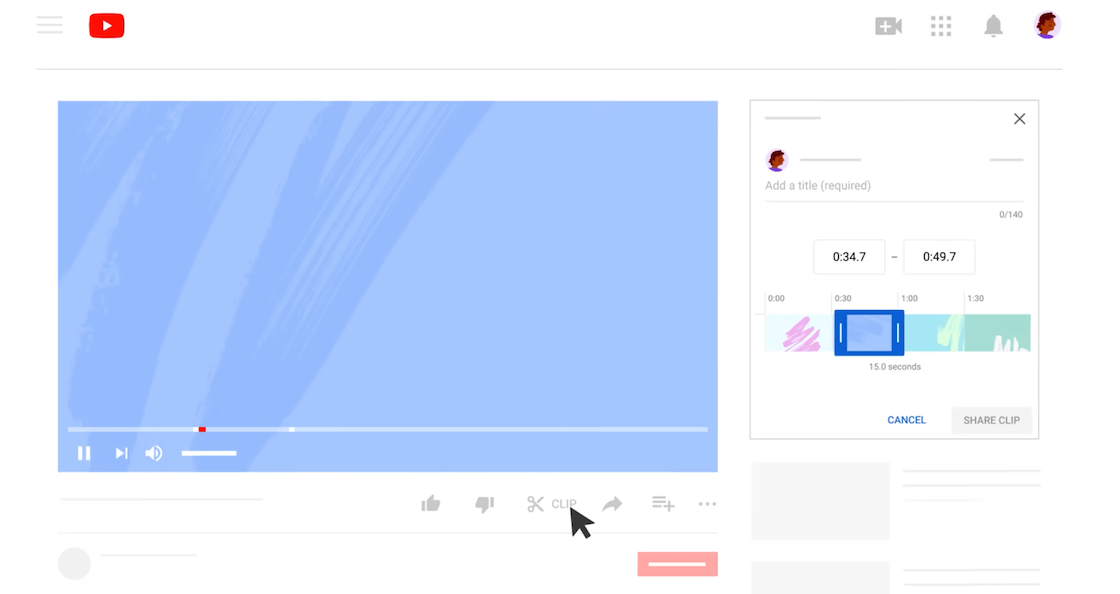
- Log in to your YouTube account and find the video you want to clip. You can navigate through your channel page or use YouTube Studio filters for quicker access.
- Click the menu icon (three vertical dots) next to the video and select Clip. Assign a recognizable name to your clip for easy identification later.
- Use the sliders to select the specific portion of the video you’d like to clip. The duration must be between 5 and 60 seconds.
- Once your clip is ready, click Share clip:
- Copy the link and share it anywhere.
- Embed the clip on a blog or website.
- Post the link on social media to bring viewers back to your channel.
That’s it!
How to Make a Clip from a YouTube Video on Mobile
If you primarily shoot your videos on your smartphone, clipping a video with a mobile editor might seem easier for you. Luckily, both iOS and Android let you quickly turn your lengthy videos into bite-sized engaging clips.
YouTube’s built-in clipping feature is available on both desktop and mobile devices, including Macs, PCs, laptops, and Android or iOS smartphones. Simply log into your YouTube account to start creating clips.
For greater efficiency, you might explore third-party tools that streamline the clipping and sharing process, saving you time and effort.
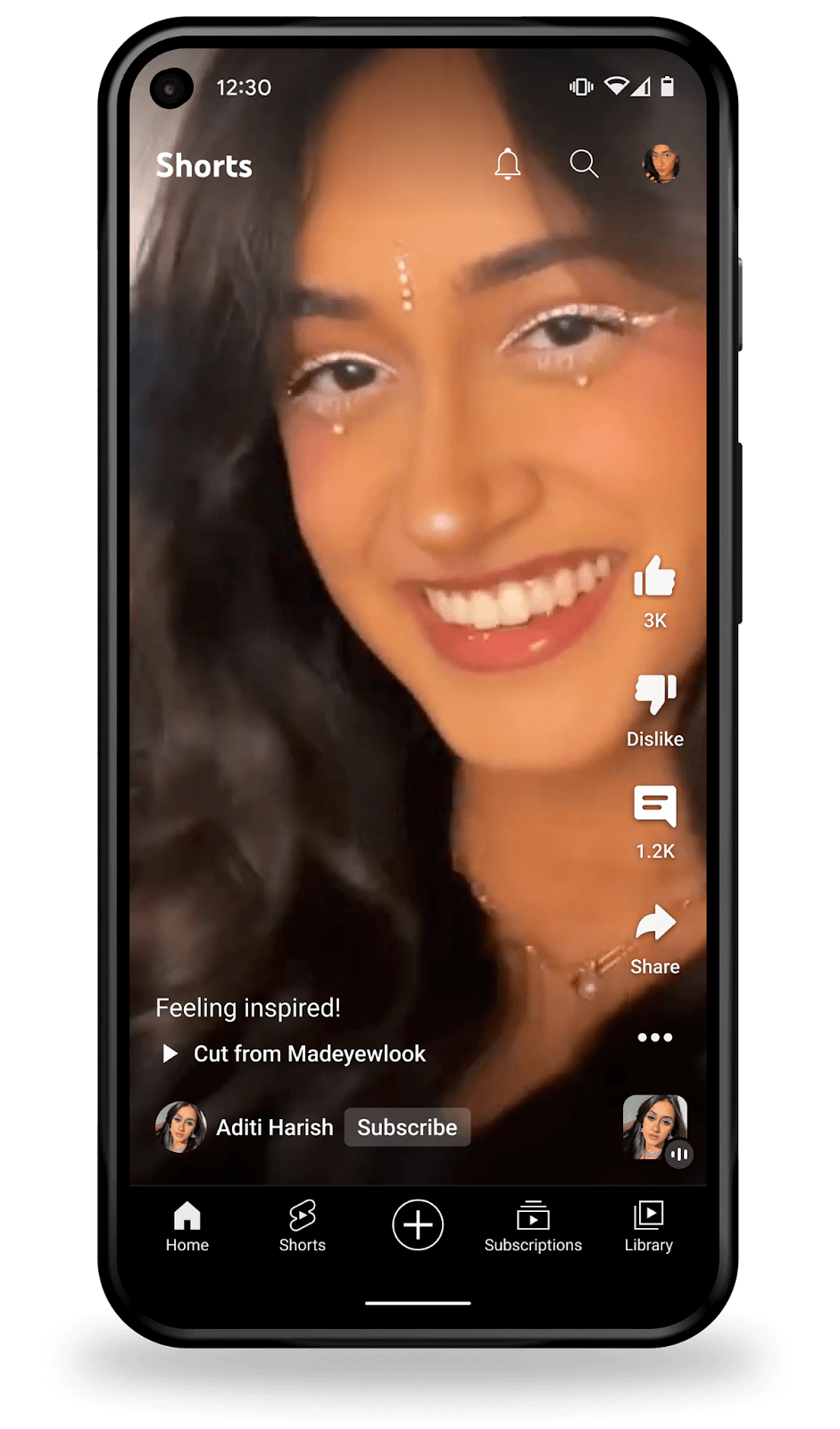
- Open the YouTube app on your phone or tablet and navigate to your channel. Select the video you want to turn into a Short and start playing it.
- Tap the Remix button (or Create, depending on your app version), then choose Edit into a Short to access the Shorts editor.
- In the editor, use the sliders to select the section of the video you’d like to feature. You can enhance your clip by adding captions, stickers, or transitions. If needed, you can also include new footage to complement the original video.
- When you’re satisfied with the final edit, tap Publish to share your Short. The Short will automatically link back to your full video.
How to Take a Clip from a YouTube Video & Download with AI Video Cut
To automate the process, you can opt for AI Video Cut; this online video cutter is your best bet if you want to create several clips from a single video in just a couple of clicks. Powered by OpenAI, this tool allows you to make different types of short videos, always tailored to a specific social media platform, be it Reels, TikTok, Shorts, X, LinkedIn, and more.
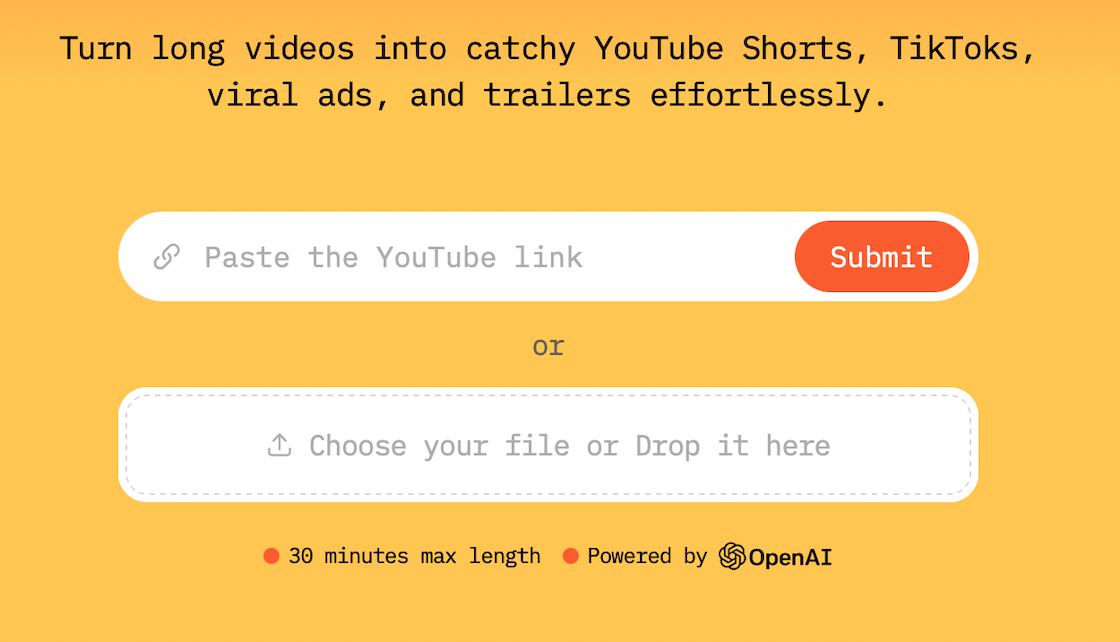
- Open AI Video Cut in your browser.
- Paste the link to the YouTube video you want to clip or upload it directly from your device. If you need to download the video first, use 4K Video Downloader Plus.
- Choose one of the prompts or come up with your own custom prompt.
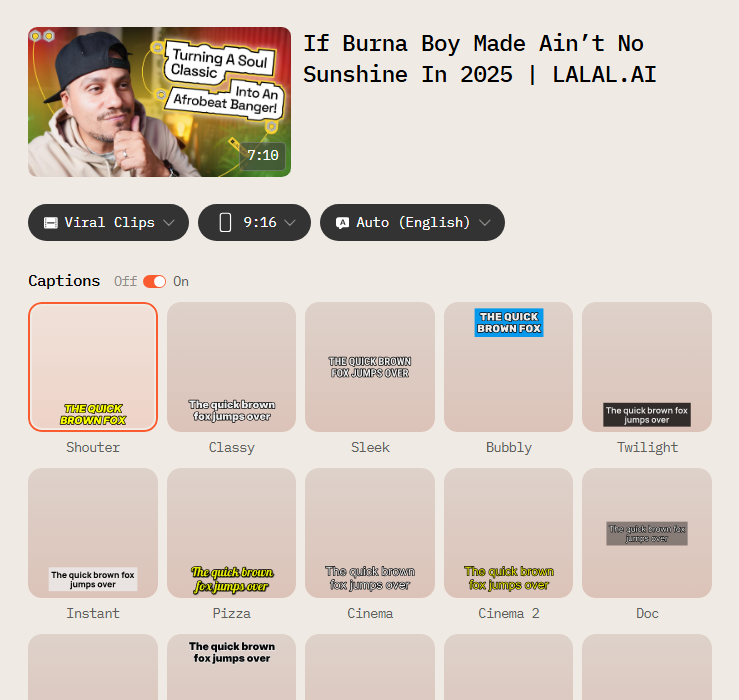
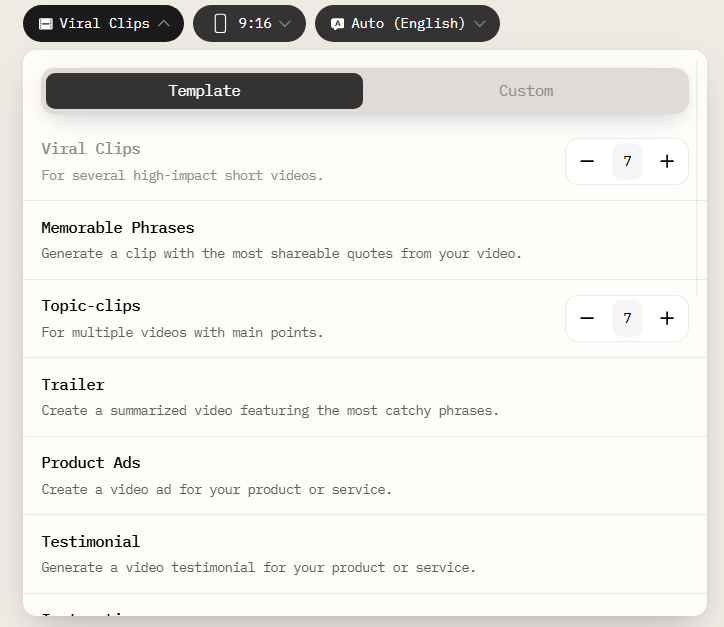
4. Choose the required aspect ratio to share your short video on a specific platform (9:16 is your choice if you’re planning to upload your video on TikTok, YouTube Shorts, or Reels).
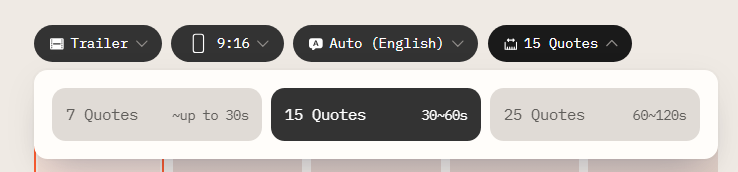
- Choose the video length.
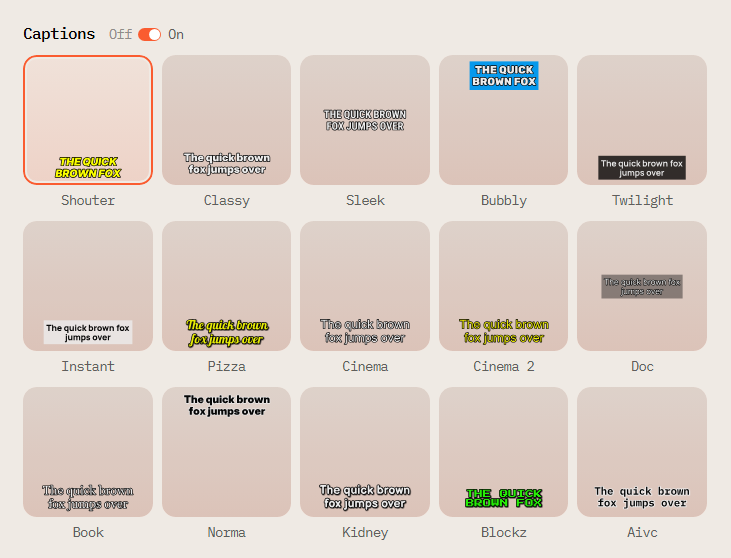
- Choose the style of the auto-captions or turn them off completely if your original video has them.
7. Click Submit and wait for the video to be clipped.
- Preview the results. Use the built-in editor if a short clip needs fine-tuning.
- Download your clip as soon as you’re happy with it, and share wherever you want.
Tips for Writing AI Video Cut Prompts
If use a custom prompt in AI Video Cut, you can include the following tips when coming up with a prompt description:
- Use a funny moment, an unexpected twist, or something intriguing as a hook to stop viewers from scrolling. Your goal is to grab their attention immediately and keep them engaged until the end.
- Try to make a smooth video loop. These work especially well on platforms like TikTok, Instagram, and even YouTube Shorts. When your video flows seamlessly back to the beginning, viewers are more likely to rewatch and share it.
- Start your prompt like this: “Extract (number) quotes about (topic), (special word), or (key moment).” Here are some examples:
- “Extract 7 quotes about the key moments.”
- “Extract 10 quotes which contain the word ‘Hello.’”
- “Extract 5 quotes about nature.”
- Add simple conditions like “Don’t repeat the quotes.”
- Experiment with different prompts; for instance, use role-based prompts, such as: “Act as a storyteller and extract 7 quotes to combine a story about…”
YouTube, like TikTok and Instagram, tends to promote content that aligns with current trends. Choose popular audio to increase visibility and leverage YouTube Studio’s analytics to improve your clips. Check where viewers drop off and analyze that part of the video. If pacing is an issue or something feels off, tweak it to keep viewers engaged longer.
Quick-Reference: YouTube Clipping Methods Compared
Frequently Asked Questions
Can I Clip Someone Else's YouTube Video?
Yes, as long as the creator hasn't switched off clipping on their channel. If you are a logged-in user, you can use YouTube's clip tool on any eligible video.
Is Clipping a YouTube Video the Same as Downloading It?
No. YouTube's built-in clip feature creates a shareable link that plays on YouTube — it doesn't save the video file to your device. To download a clip, you'll need a third-party tool like AI Video Cut or 4K Video Downloader Plus.
How Long Сan a YouTube Clip Be?
YouTube clips must be between 5 and 60 seconds long. For longer clips, you'll need to use a third-party video editor or an AI clipping tool.
Do YouTube Сlips Notify the Original Creator?
No. YouTube does not tell the person who makes a video when it is used in a clip.
Will a YouTube Clip Link Back to the Original Video?
Yes. Every clip, whether made using the desktop clip tool or the Shorts editor on a phone, includes a link that takes you back to the original full-length video.
Can I Monetize Clips of Other People's YouTube Videos on TikTok or Reels?
This depends on the original video's copyright and licensing terms. If you clip and repost someone else's content on another platform without permission, you could be breaking the law, even if YouTube allows clipping for sharing purposes. Always check the creator's terms or ask permission before using repurposed content for money.
Does YouTube Notify You When Your Video Has Been Clipped?
No. YouTube does not send individual clip notifications, but you can monitor clip activity through YouTube Studio analytics.
What's the Best Tool for Creating Multiple Clips from One YouTube Video at Once?
AI-powered tools like AI Video Cut are best for batch clipping. You can extract and export multiple segments from a single video, each formatted for a specific platform such as TikTok, Reels, or Shorts.